SPECIFICATIONS
Animation Phone Cover: LED Pixel Display Phone Case
App Controlled Case: Pixel Dynamic Phone Case With APP
Brand Name: NONE
Choice: yes
Creative Pixel Shell: Music Rhythm Animated Phone Case
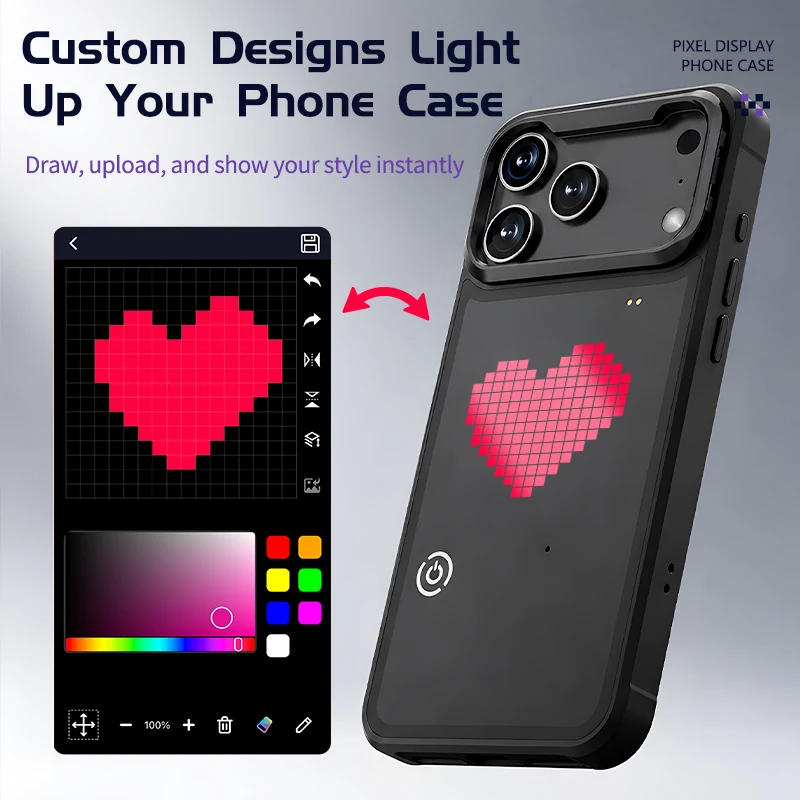
Custom Dynamic Pixel Case: Custom pixel drawing phone case
DIY Pixel Case: Programmable Pixel Shell
Design: Pattern,Letter
Dynamic Case: Pixel Phone Case
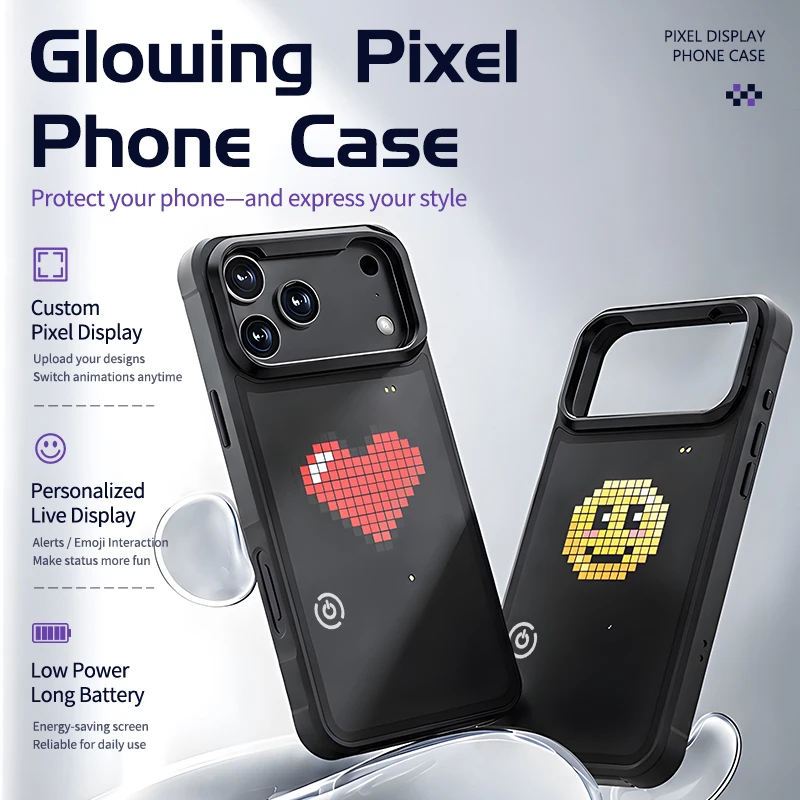
Emoji Pixel Case: Animated emoji display phone case
Features: With Holder,LED
Funny Dynamic Screen Case: Personalized DIY pixel phone case
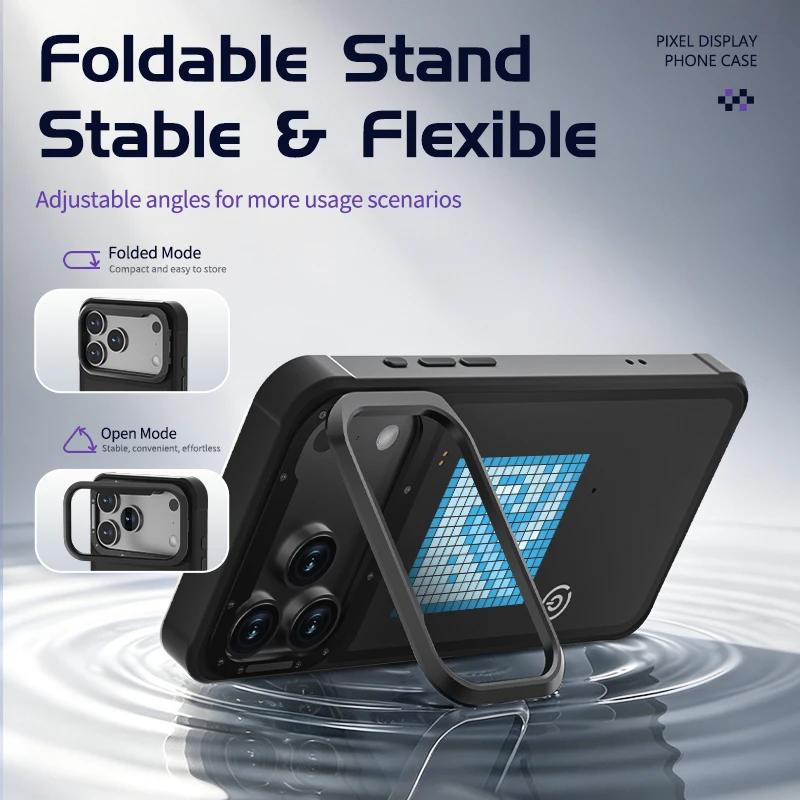
Graffiti Pixel Dynamic Case: Built-in foldable kickstand phone case
High-concerned chemical: none
Interactive Light Case: Dynamic pixel animation phone shell
LED Pixel Cover: DIY Custom Pixel Art Phone Cover
LED phone case: All-round protective phone shell
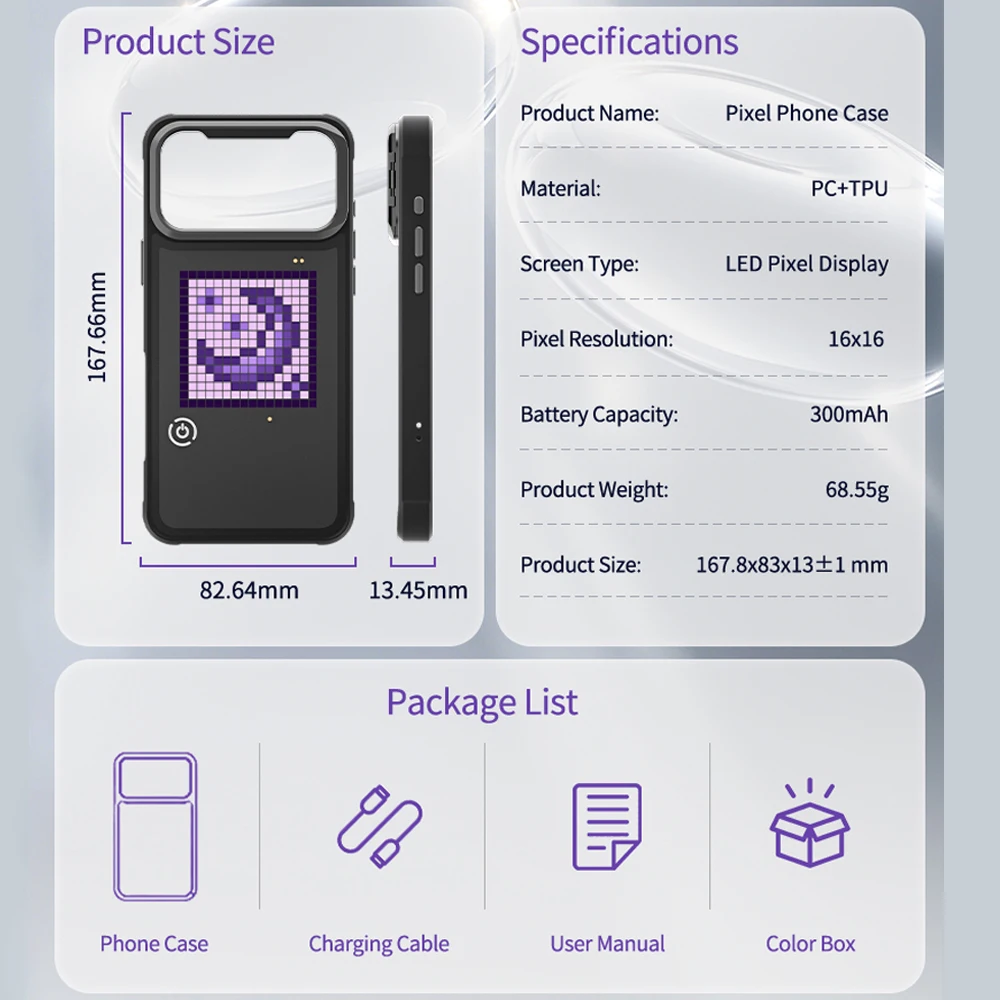
Main Material: Pc + tpu
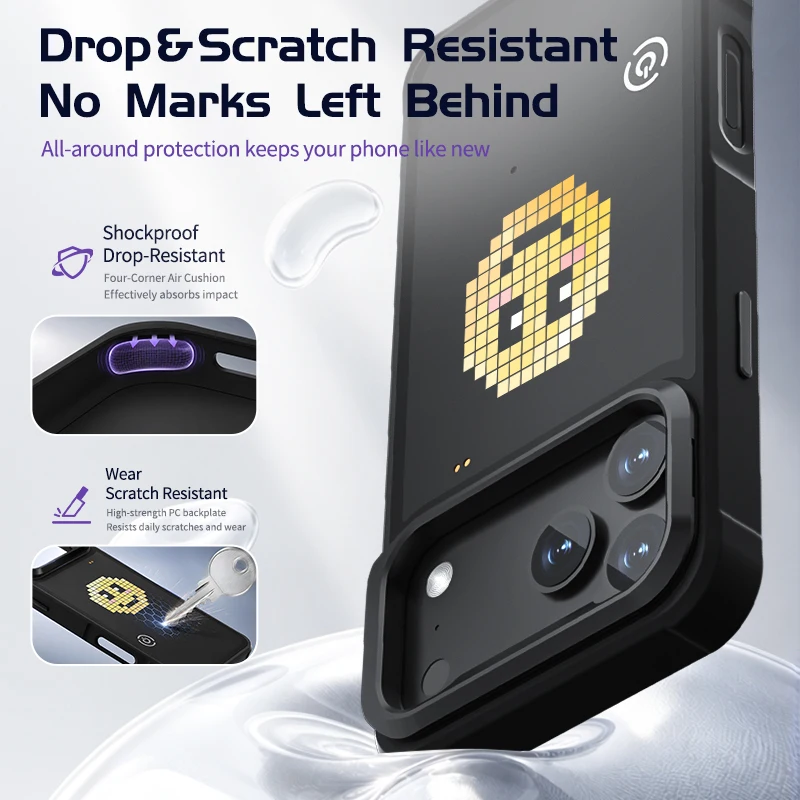
Mood Light Pixel Cover: Drop scratch resistant phone cover
Origin: Mainland China
Running Text Display Case: Glowing Light Up Phone Case
Type: Case
rechargeable phone case: Type C charging LED phone case
smart phone case: Lens protection phone case
The QR code is for downloading the iOS version of the Dance Phase APP.
1. Case Installation and Usage:
- Turn off your phone or exit its protective mode, then remove the existing phone case.
- Align the phone with the back slot of the case, gently press the edges, and ensure the phone fits snugly with the case (make sure the camera/sensor holes are fully aligned).
2. Bluetooth Connection and APP Configuration:
- Download the APP: Scan the QR code on the packaging box, or search for "Dance Phase" APP in the App Store and install it.
- Enable Bluetooth: Go to your phone's Settings → Bluetooth, and turn on Bluetooth.
- Press and hold the power button on the case. The LED display will show a battery icon, indicating that the case is turned on.
- Open the Dance Phase APP and click the "Device Connection" button. Slide the switch button to the right. A connection symbol will appear on the LED display during the connection process.
3. Lighting Mode Adjustment:
- Basic Adjustment: On the APP homepage, select "Lighting Mode". Enter text in the text field, choose your preferred special effect, and click the send icon at the bottom to display the text on the LED screen.
- Note: The text should not be too long; it is best to limit it to four characters or fewer.
- Click the second button at the bottom of the APP to select your preferred lighting mode.
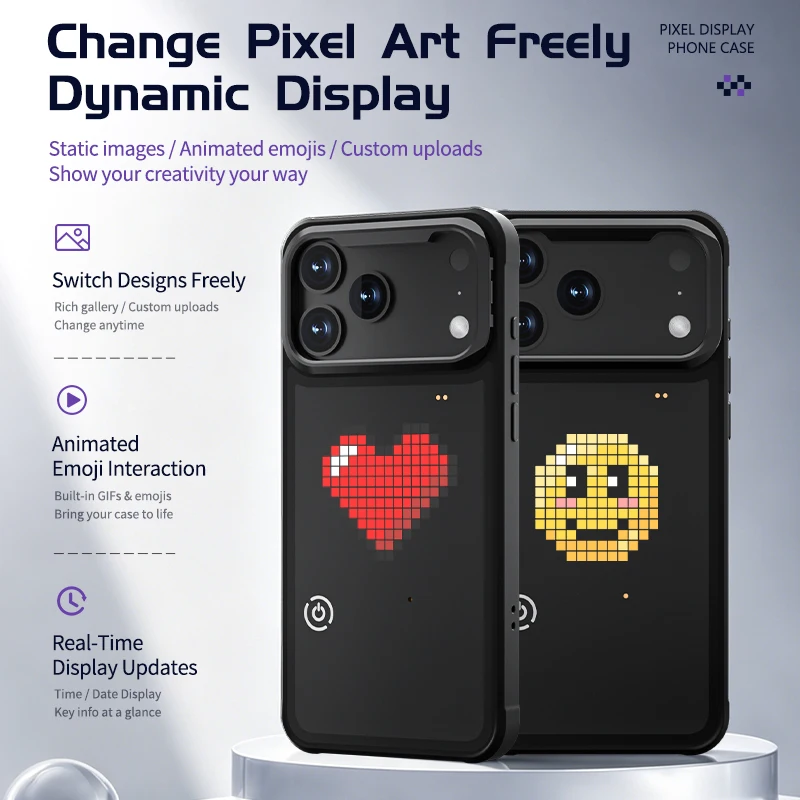
- Click the third button at the bottom of the Dance Phase APP to choose your preferred material or image, which will then be displayed on the LED screen.
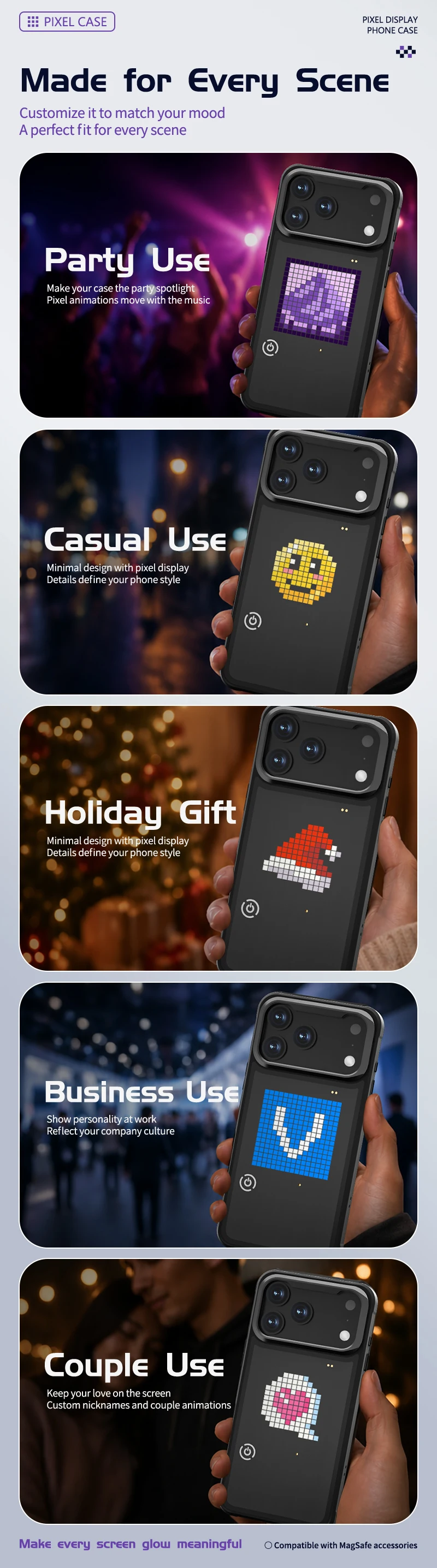
- Available images include daily themes, holidays, emojis, creative designs, commercial content, and more.
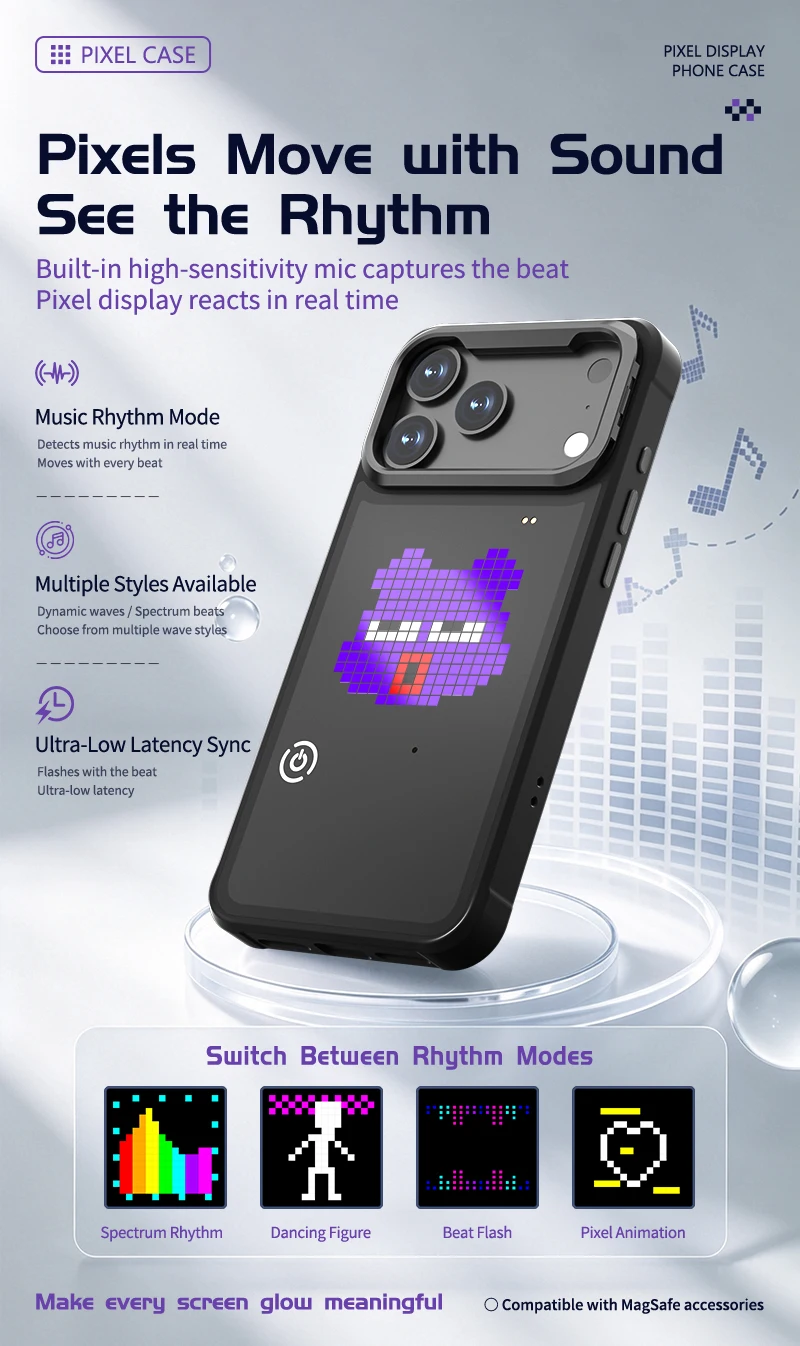
- The fourth button in the APP is for the music rhythm function, where the lighting effects change according to the rhythm of the music.
4. Charging and Battery Life:
- Charging Interface: Magnetic charging.
- Charging time: 50-60 minutes.
- Do not use high-current or high-voltage fast chargers.
- Charging specifications: 5V / 1-1.5A.
- Indicator light: Red light turns on when charging begins; turns solid green when fully charged.
- Charging Time: Approximately 30 minutes to reach 80% charge, about 1 hour for a full charge.
- Recommendation: Charge in time when the battery is low to avoid over-discharging, which may affect battery life.
Battery Life (Constant Brightness Mode):
- High brightness: Approximately 2 hours
- Low brightness: Approximately 3 hours
5. Safety Precautions:
- Disassembly Prohibited: The case contains precision circuits. Disassembling it by non-professionals may cause damage or safety hazards.
- Avoid Liquid Contact: Do not immerse the case in water (e.g., sinks, bathtubs). If it accidentally gets wet, turn it off immediately and contact customer service.
- Usage by Children: It is recommended that children use the product under adult supervision to avoid biting or pulling the light strip.
- Troubleshooting (Case Won't Turn On): First check if the battery is low. Charge the case for 30 minutes and try again.